
Stay connected during rare service interruptions
HomeOfficeIQ pairs your phone's hotspot with your LiveOak network. If your service is interrupted, the devices you count on switch to cellular and keep working.
Set it up in the appA backup for your internet
Though rare, service interruptions do happen. HomeOfficeIQ gives you a second way to get online until service comes back.
- Keep your streaming devices online
- Keep your cameras, doorbells, and smart locks connected
- Keep online classes and your work going
- Pick which devices or networks get backup
- Manage it all in the LiveOak Fiber app

Set it up in three steps
Pair a hotspot
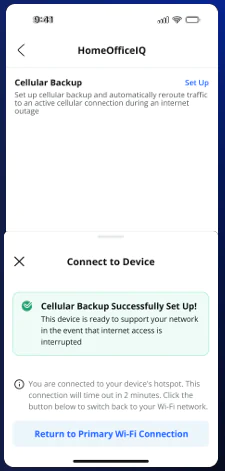
Add your phone or a mobile hotspot as your backup in the LiveOak Fiber app. The app tests it so you know it works.
Pick what stays online
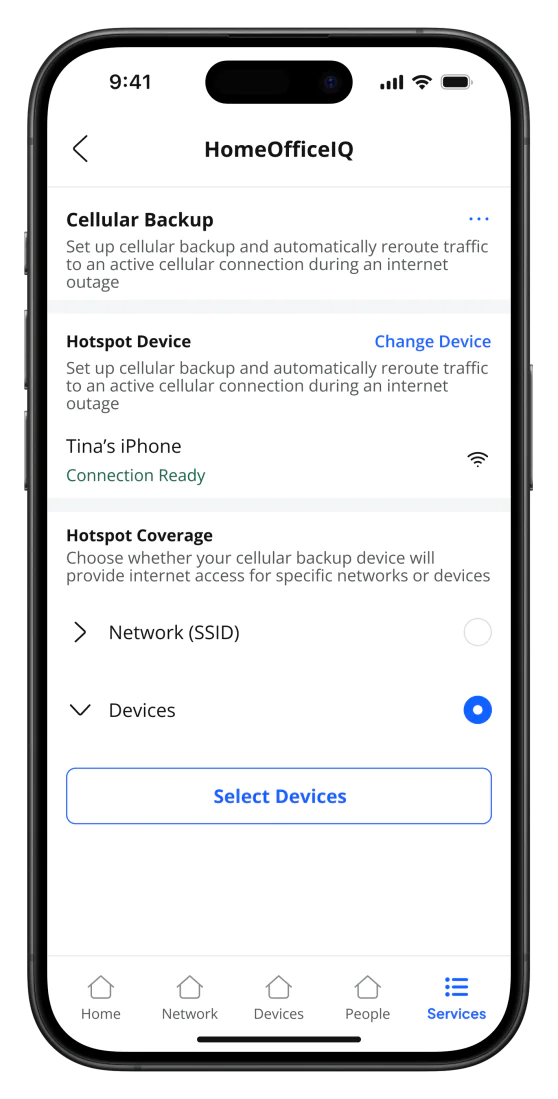
Choose a whole Wi-Fi network, or pick devices one by one, like your laptop or your cameras. It's up to you.
Switch over during an outage
If your service is interrupted, turn on your hotspot. The devices you picked connect to it on their own.
Back up a whole network or just a few devices
Backup uses your hotspot's data plan, so you decide how much to put on it.
By network
Keep a whole Wi-Fi network online, like your Work From Home network. Everything on it stays connected.
By device
Pick just the devices you need. Your laptop and cameras stay online. Your TVs and game consoles wait until service comes back.
How to set it up
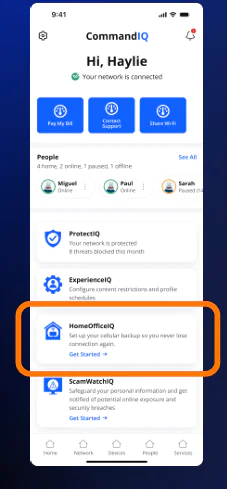
HomeOfficeIQ is in the Services list.
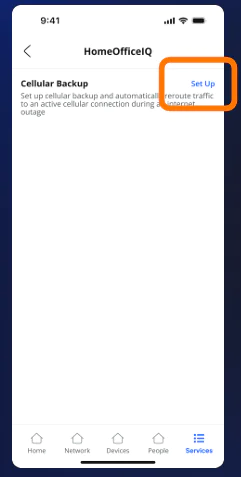
The app walks you through the rest.
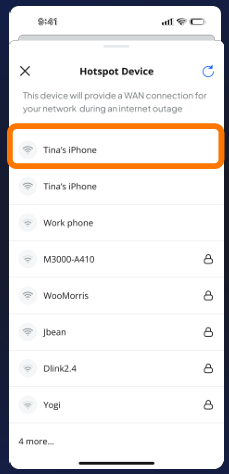
Pick your phone or a mobile hotspot from the list.
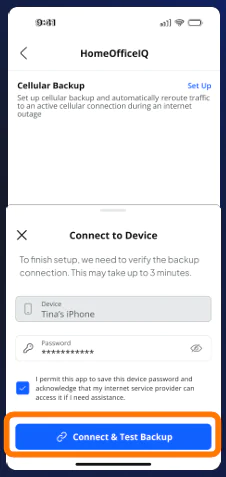
Tap Connect & Test Backup. This can take up to 3 minutes.
Under Hotspot Coverage, choose Networks or Devices and make your picks. You can change them anytime.
Before you set it up
Streaming during an outage uses that data. Backing up only a few devices keeps usage low.
During an outage, turn on your hotspot. Your chosen devices switch to it on their own.
Plan on enough speed for calls, cameras, and schoolwork. Full fiber speed comes back when service does.